Features
Everything MuteHint does, shown in the real app
A floating window that listens to your call in any of 30 languages and shows a short answer you can say. It stays out of screen shares. For macOS and Windows.
- No card needed
- macOS and Windows
- 7-day money-back guarantee
What it does, one screen at a time
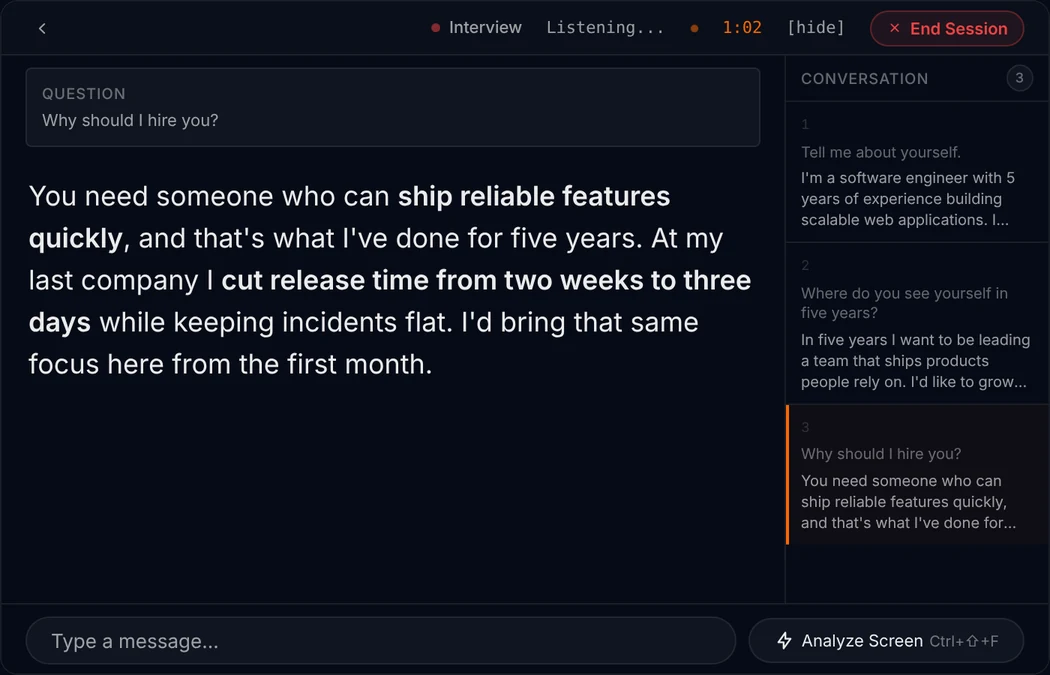
Every picture below is the MuteHint app. The first one is an example session with a sample question and answer.
During the call
An answer while they are still talking
MuteHint picks out the question you were just asked and shows it in a small Question box. Below it is a short answer you can say, with the key phrases in bold.
Press Ctrl+Enter (Cmd+Enter on a Mac) to ask for the next step. A Conversation panel keeps the questions asked so far.
Before the call
Tell it about the call
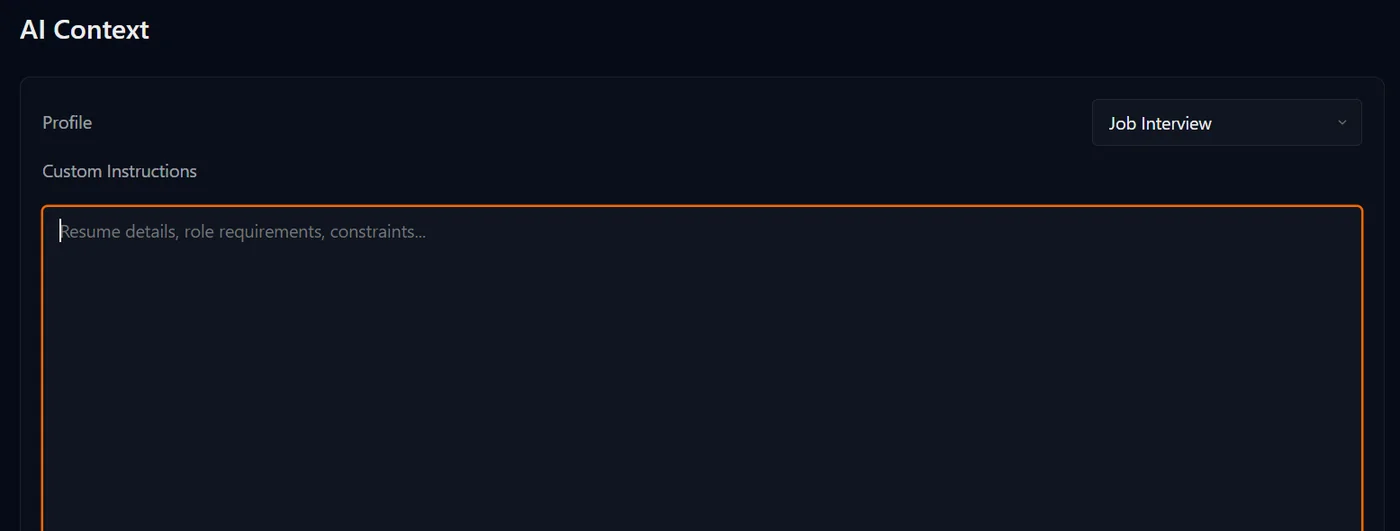
Pick a profile and paste your CV, the role, your pitch or your notes. The AI uses that text to write answers that fit you.
This text is sent to your AI provider and saved with your session on MuteHint's servers.
Profiles
Five profiles
Each profile tells the AI what kind of conversation you are in. You pick one before you start.
- Interview. A direct answer to the interviewer's question, drawn from the background you gave it.
- Meeting. A clear thing to say when the room turns to you.
- Sales Call. A reply to the objection or question the buyer just raised.
- Presentation. A confident answer to the question from the audience.
- Negotiation. A measured reply when the other side pushes on terms.
Interview is in the Free plan. The other four are in paid plans, from $25.
Settings
As see-through as you want
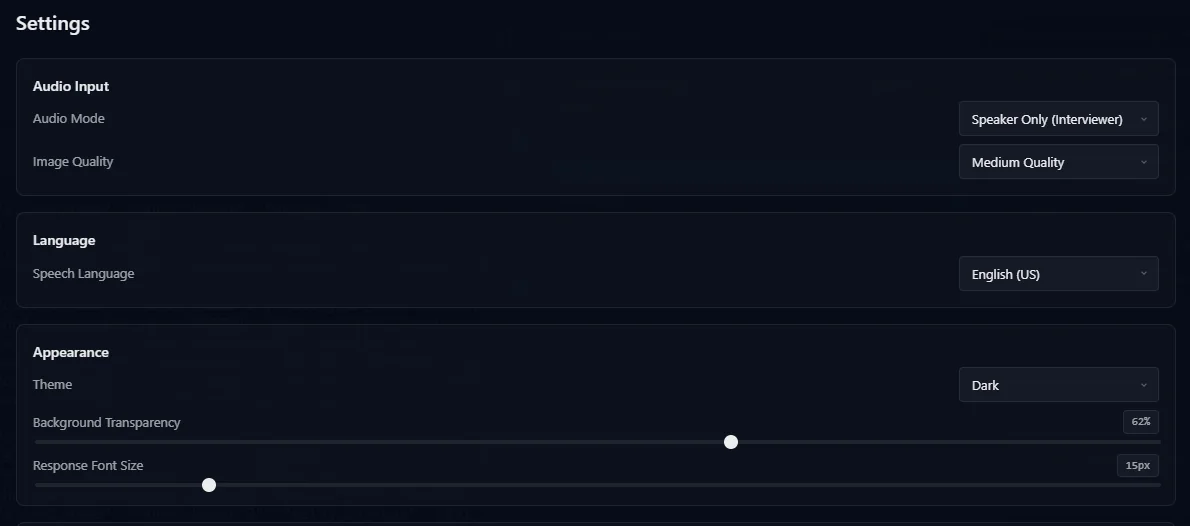
One slider sets how transparent the window is. Another sets the size of the answer text.
Choose whether it listens to the other side, your microphone or both. By default it listens to the other side.
Shortcuts
Keyboard control
Hide the window, let clicks pass through it, move it and ask for the next step, all without reaching for the mouse.
These are the defaults. You can change them in the app.
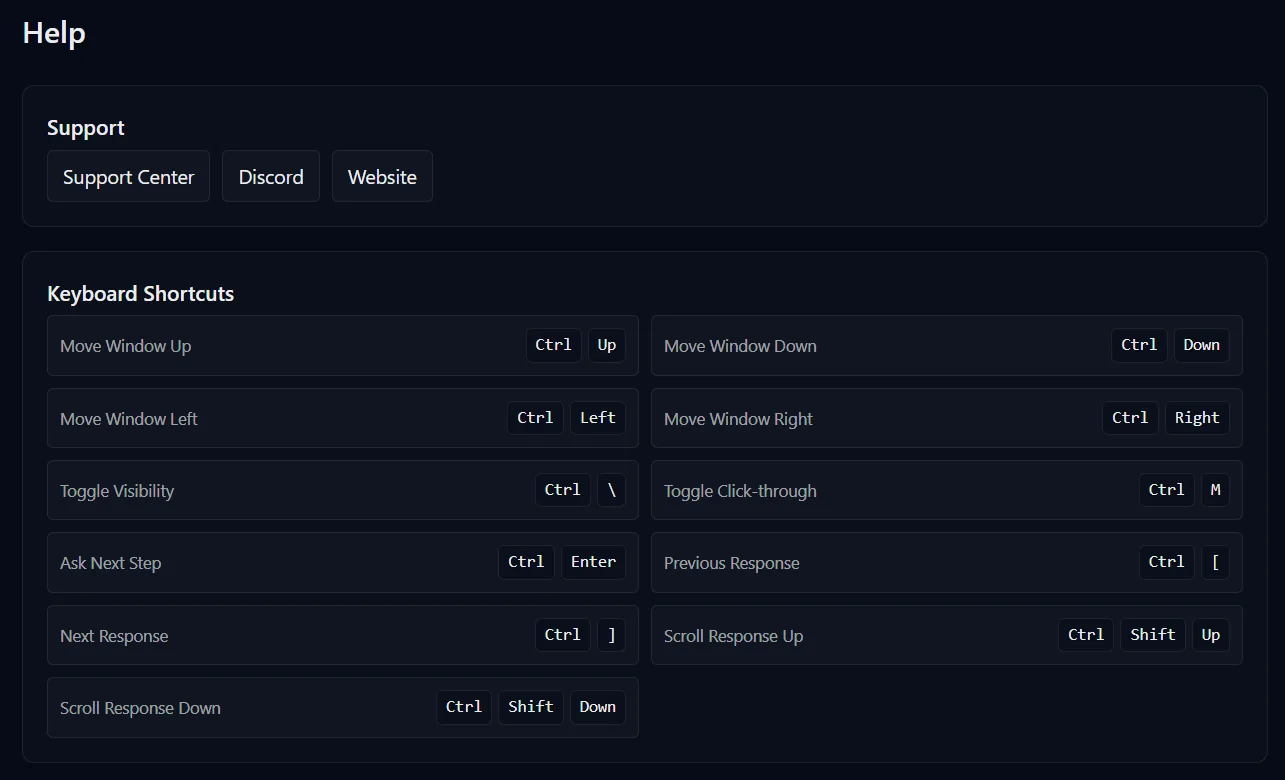
| What it does | Windows | Mac |
|---|---|---|
| Show or hide the window | Ctrl + \ | Cmd + \ |
| Let clicks pass through it | Ctrl + M | Cmd + M |
| Move the window | Ctrl + arrow keys | Option + arrow keys |
| Ask for the next step | Ctrl + Enter | Cmd + Enter |
| Previous or next answer | Ctrl + [ or ] | Cmd + [ or ] |
| Scroll the answer | Ctrl + Shift + Up or Down | Cmd + Shift + Up or Down |
| Hide, end the session and quit | Ctrl + Shift + E | Cmd + Shift + E |
After the call
Session history
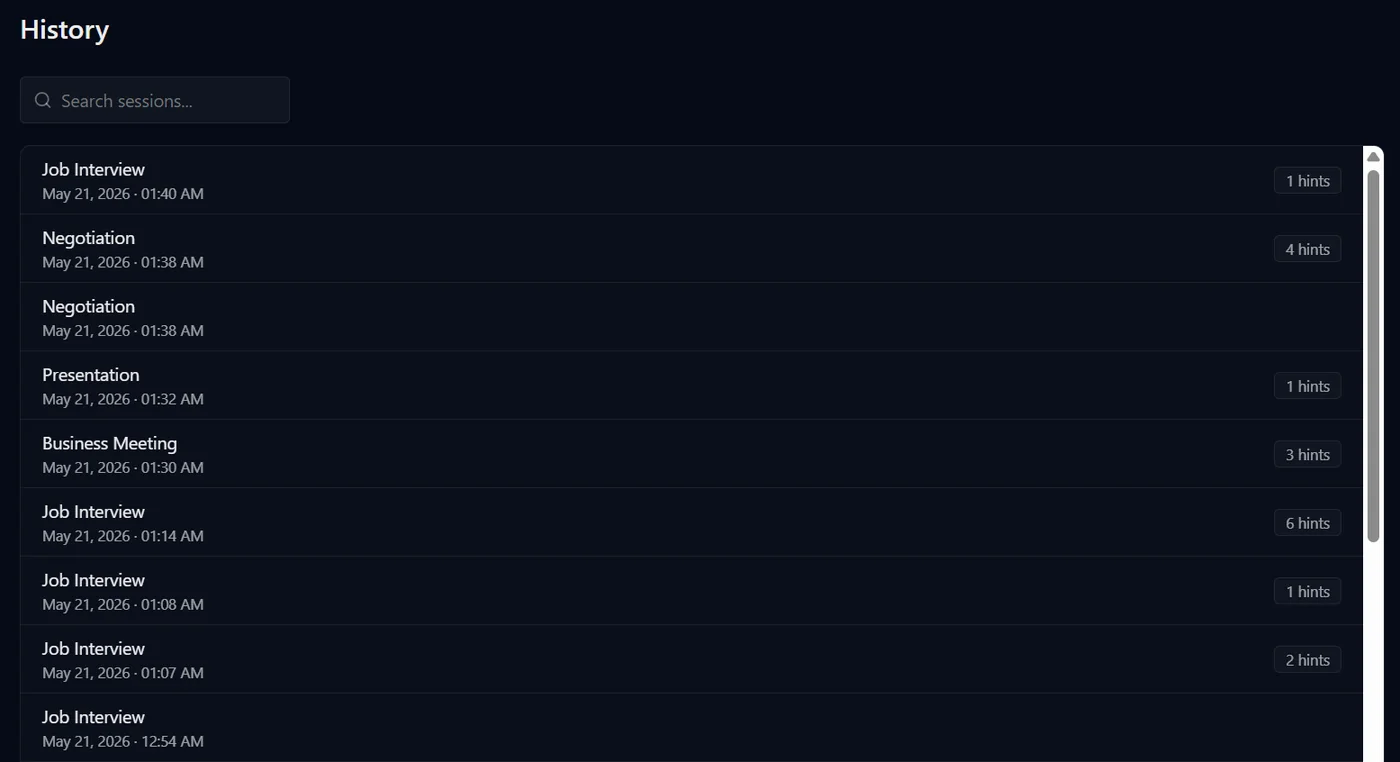
Paid plans keep a list of your past sessions that you can search.
Open a session to read the answers it showed you.
Included in paid plans
All 25 features
Everything in the app, in one list
What MuteHint does, from staying out of sight to answering in your language. Everything without a tag is in the Free plan too.
Stays out of sight
Left out of screen sharing
MuteHint asks macOS or Windows to leave its window out of screen shares and recordings. It never joins the call.
No taskbar or Dock icon
Nothing in the taskbar, the Dock or the tray gives it away on a shared screen. On a Mac it is also left out of Mission Control.
Hide it in one keystroke
Ctrl+\ (Cmd+\ on a Mac) hides and shows the window, whatever app you are in.
Click straight through it
Ctrl+M (Cmd+M) lets your clicks pass through the window to the app underneath, so it never gets in your way.
See-through window
Set how transparent the window is, so it sits over your notes or your call without covering them.
Emergency erase
Ctrl+Alt+Shift+E (Cmd+Option+Shift+E) during a session hides MuteHint, ends the session, wipes what it keeps on your computer and quits.
Hears the call, in your language
30 speech languages
English, Spanish, French, German, Arabic, Hindi, Tamil, Telugu, Mandarin, Japanese and more. Pick the language of the call in Settings.
Their side, yours, or both
Listen to the other person, to your own microphone, or to both at once, mixed into one clear stream.
Picks out the question
MuteHint shows the question you were just asked, so you can check it heard it right before you answer.
Answers at reading speed
The answer appears as it is written, not read out at speaking pace, with the key phrases in bold.
Answers that fit you
Five profiles
Interview, Sales call, Meeting, Presentation and Negotiation. Each tells the AI what kind of conversation you are in.
Your CV, your notes, your pitch
Paste your resume, the job description, your product notes or your targets. Answers are written around them.
Ask for the next step
Ctrl+Enter (Cmd+Enter) asks for a follow-up when you need more to say.
Type a question
Type into the session to ask something the other person has not said out loud.
Read the screen
One button sends a single screenshot to your AI, for a coding problem, a chart or a slide. Nothing is captured continuously.
Paid plans
Back to an earlier answer
Step back and forward through the answers of this session with Ctrl+[ and Ctrl+], and copy any of them.
Your AI, your choice
Bring your own Gemini key
Audio goes from your computer to Google with your key, not through MuteHint. You pay Google directly, with no markup.
Add a Groq key if you like
An optional Groq key gives you a second fast AI provider, on every plan.
Run it on your own computer
Local AI runs speech recognition (Whisper) and answers (Ollama) on your own machine, so the call never leaves it.
Paid plans
Made to fit your setup
Run it from the keyboard
Move the window, scroll answers, hide it, click through it and more without the mouse. Change the keys in Settings.
Nine themes
Dark, Light, Midnight Blue, Sepia, Catppuccin Mocha, Gruvbox Dark, Rosé Pine, Solarized Dark and Tokyo Night.
Text size that suits you
Make the answer text bigger or smaller to read it at a glance.
Works with every call app
Zoom, Google Meet, Microsoft Teams, Webex and the rest. MuteHint listens to your computer's sound, so the app does not matter.
Session history
Search your past sessions and read the answers each one showed you, in the app and on the website.
Paid plans
Updates itself on Windows
New versions download in the background. You press Restart when it suits you, never during a call.
Bring your own key
Your key, your bill
Paste your key
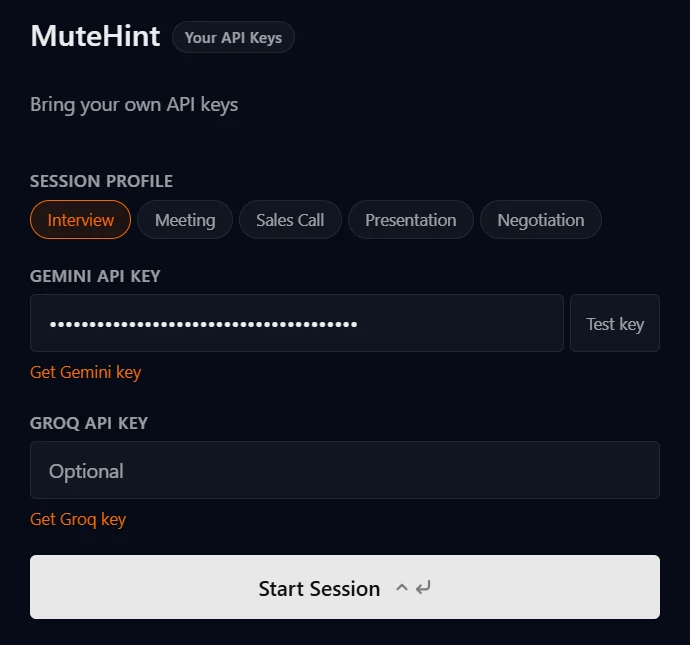
Create a Gemini API key in Google AI Studio, paste it into the app's start screen and press Test key. A Groq key is optional.
Audio goes to Google, not to us
Call audio goes from your computer straight to Google, using your key. It is never sent to MuteHint.
You pay Google directly
Your plan covers the MuteHint app. Google bills you for the AI you use, with no markup from us.
MuteHint's servers do save the answers shown to you and the context you typed, so paid plans can show them in your history.
See where each kind of data goesStart free. Paid plans from $25.
The free plan gives you real live sessions with the Interview profile, 15 minutes each. Paid plans add the other four profiles, unlimited sessions with no time limit, screen capture and session history.
MuteHint opens soon. Join the waitlist and we will email you the day you can sign up.
Free
Real live sessions, not a demo.
- Interview profile
- 2 sessions a week
- 15 minutes a session
- 1 device
- No screen capture or session history
15-Day Pass
No renewal. You move back to Free after 15 days.
- All 5 AI profiles
- Unlimited sessions for 15 days
- No time limit on a session
- Screen capture
- Session history
- 1 device
Lifetime
Launch price for the first 50 buyers. Then $150.
- All 5 AI profiles
- Unlimited sessions, forever
- No time limit on a session
- Screen capture
- Session history
- Every future update
- 3 devices
Monthly
Billed monthly. Cancel any time.
- All 5 AI profiles
- Unlimited sessions
- No time limit on a session
- Screen capture
- Session history
- 2 devices
Full refund within 7 days of purchase if no session has lasted more than 10 minutes. Refund policy
Your next call is coming either way. Take a coach in with you.
Two free 15-minute sessions every week. Set up before your call starts.
No card needed. Paid plans from $25, with a 7-day money-back guarantee.