Use case
Hear the objection. See what to say.
MuteHint listens to the buyer, picks out the question or objection and shows a short reply you can say, using the pitch and prices you gave it.
The Sales Call profile is in paid plans, from $25 with a 7-day money-back guarantee. The free plan lets you try the app with the Interview profile.
- No card needed
- macOS and Windows
- 7-day money-back guarantee
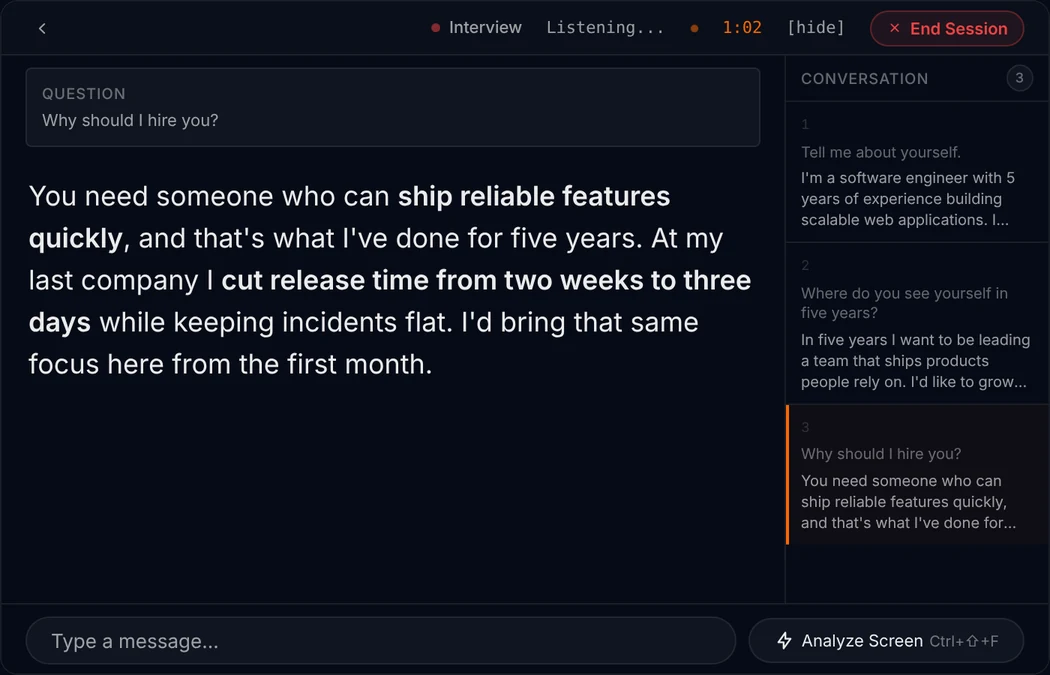
What you see during the call
Three things, the same on every call. No scores, no labels, no checklist to read.
1
The question that was just asked
MuteHint listens to the other side of the call and picks out the question. It shows it in a small Question box, so you can check it heard the same thing you did.
2
A short answer you can say
Below the question is a few sentences in plain spoken language, with the key phrases in bold. Read it at a glance, then say it your way.
3
The next step, when you ask
Press Ctrl+Enter (Cmd+Enter on a Mac) and it gives you the next step. A Conversation panel keeps the questions asked so far.
For example
They ask: “Honestly, this feels too expensive for us.”
That is fair, and I would rather talk about it now than later. What are you comparing it to? If it is the cost of doing nothing, one saved deal a month covers it, and I can walk you through how.
Make it about you
Give it your pitch and your prices
Before the call, choose the Sales Call profile and paste in what you would want in front of you anyway.
- Your pitch in a few lines: what you sell and who it is for.
- Your prices, and the discounts you are allowed to give.
- Notes on this buyer: their company, their problem and what was said last time.
The text you paste is sent to your AI provider and saved with your session on MuteHint's servers.
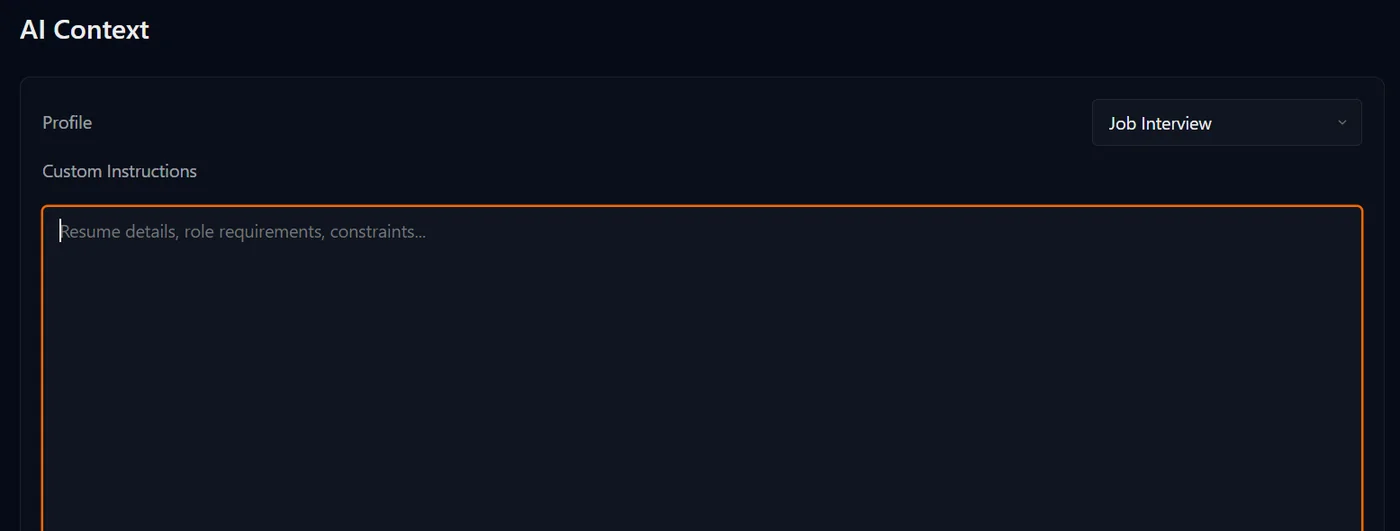
Set up before the call
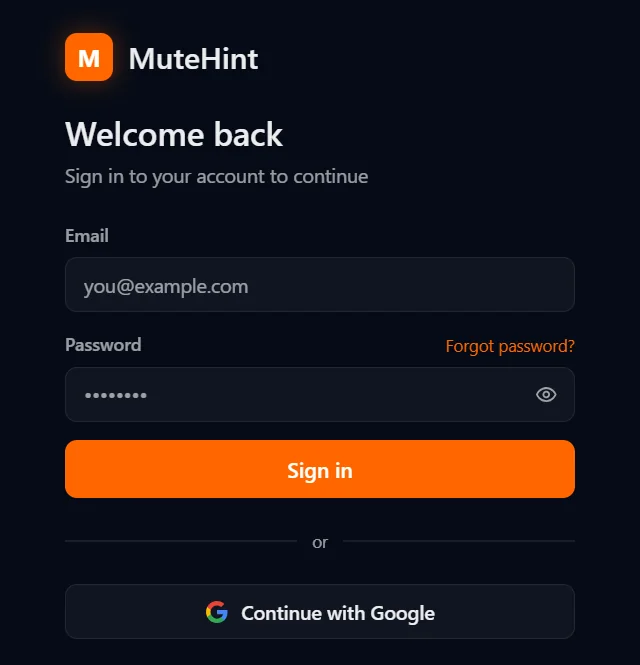
Step 1
Create a free account
Sign up, then download the app for macOS or Windows from your dashboard. Sign in with your email or with Google.
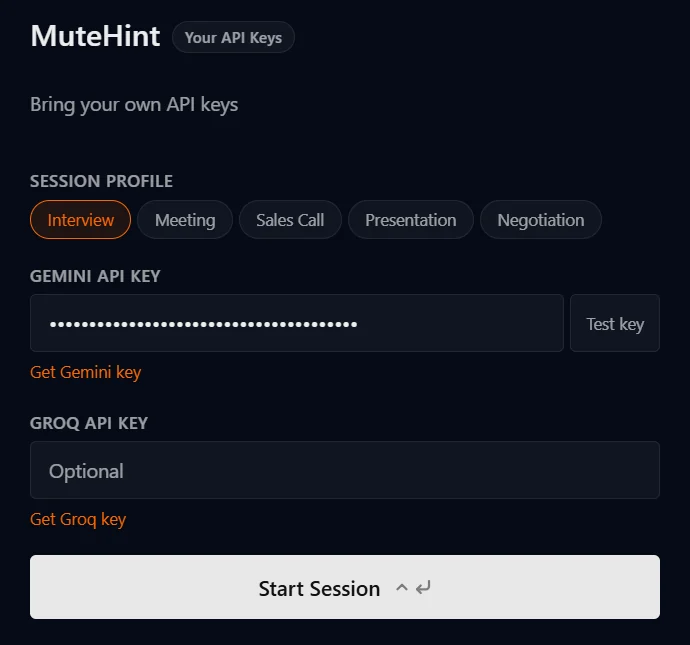
Step 2
Add your own AI key
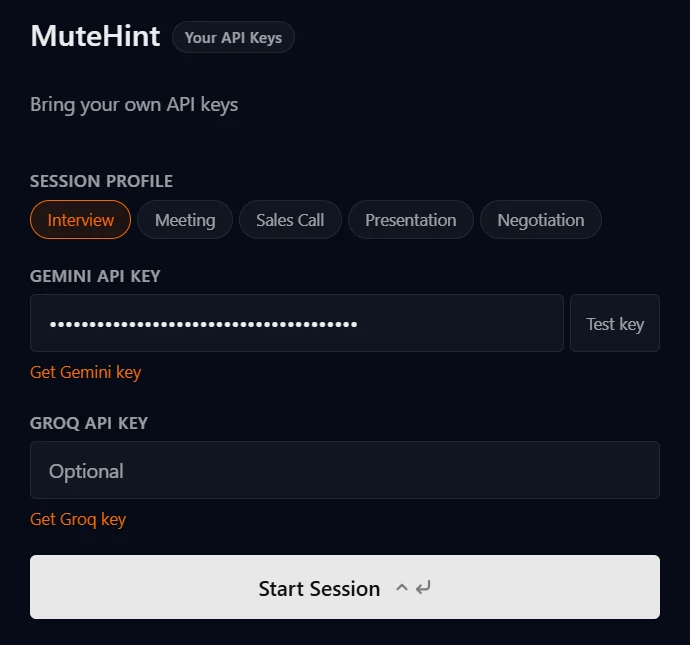
Paste a Gemini API key from Google AI Studio into the app and test it with one click. You pay Google directly, with no markup from us.
Step 3
Pick a profile and join
Start a session before your call. MuteHint listens, picks out the question you were just asked and puts an answer you can say on screen, with the key phrases in bold.
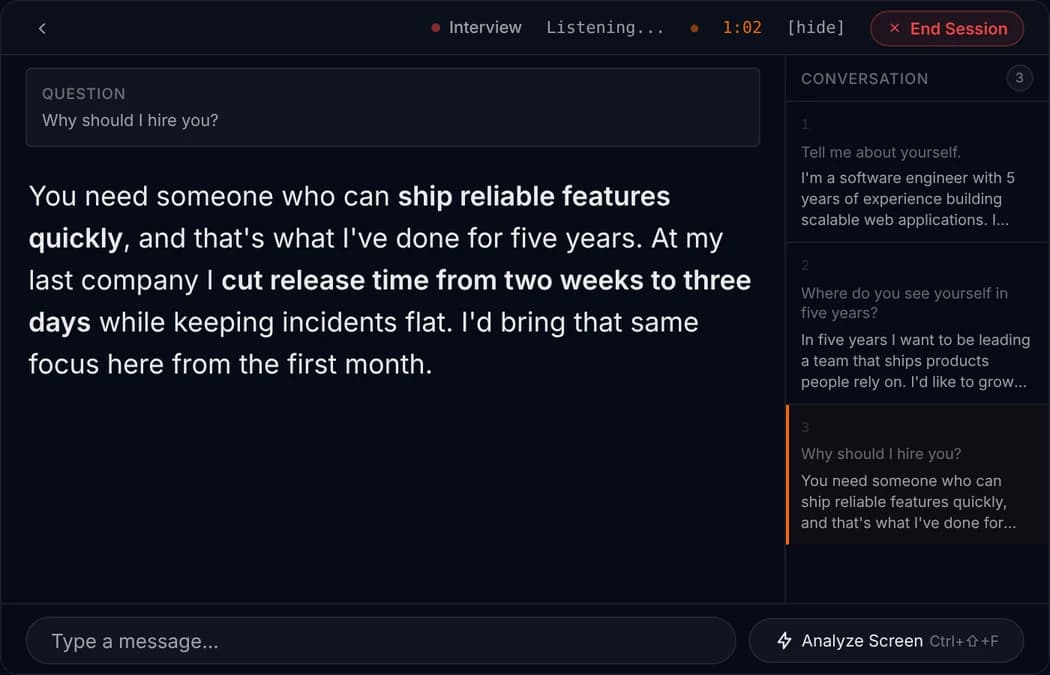
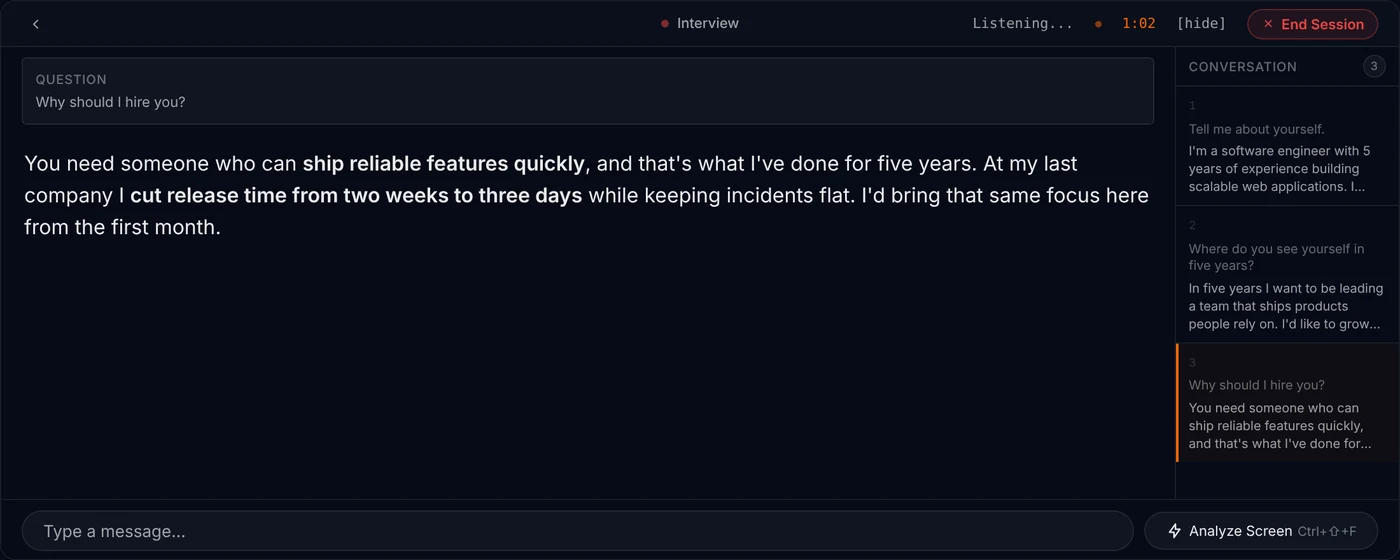
Example session. The question and answer are samples, shown on the app's live screen.

An objection is usually a question in disguise
When a buyer says it costs too much, they are rarely closing the door. They are asking you to show the value again, or telling you something about their budget that you do not know yet. The worst reply is a fast discount. The next worst is a long defence of the price.
A better habit is to ask one question before you answer. What are they comparing it to? What would have to be true for the price to make sense? Then answer the thing they tell you, in a sentence or two, and stop talking.
MuteHint helps with the moment in between: the second after the objection, when you would normally fill the silence. It puts a short reply on your screen that uses the pitch and prices you pasted in. It only knows what you gave it, so check a number before you say it. You still run the call.
Questions people ask before they try it
Can the other side see MuteHint during my call?
No. The hint window appears only on your screen, and MuteHint never joins the call as a participant. Click-through mode (Ctrl+M, or Cmd+M on a Mac) lets your mouse keep working with the call underneath, and Ctrl+\ (Cmd+\ on a Mac) hides the window instantly.
Does MuteHint join the call or show up as a participant?
No. It listens to the sound on your own computer. Nothing joins the meeting, and there is no bot in the participant list.
Does it listen to me or to the other person?
By default it listens to the other side: the sound coming out of your computer. In Settings you can switch it to your microphone, or to both.
Can I give it my CV or my pitch?
Yes. Paste your CV, the job description, your pitch or your notes into the context box before you start. The AI uses it to write answers that sound like you.
Do I have to tell the other side?
MuteHint does not join or record the call. Laws and workplace rules about using assistance on calls differ by country and employer, and you are responsible for following the ones that apply to you.
Does MuteHint connect to my CRM?
No. MuteHint has no integrations. What it knows about a deal is what you paste into the context box before the call.
Your next call is coming either way. Take a coach in with you.
Start free with the Interview profile: 2 sessions a week, 15 minutes each. The Sales Call profile is in paid plans, from $25.
No card needed. Paid plans from $25, with a 7-day money-back guarantee.